Mailtiv in Outlook
Mailtiv adds your company signature to every new email, reply, forward and meeting invite you write in Outlook. Your details come from your Microsoft 365 profile; if they're wrong, ask IT to fix them. On phones, signatures are added to emails but not to meeting invites.
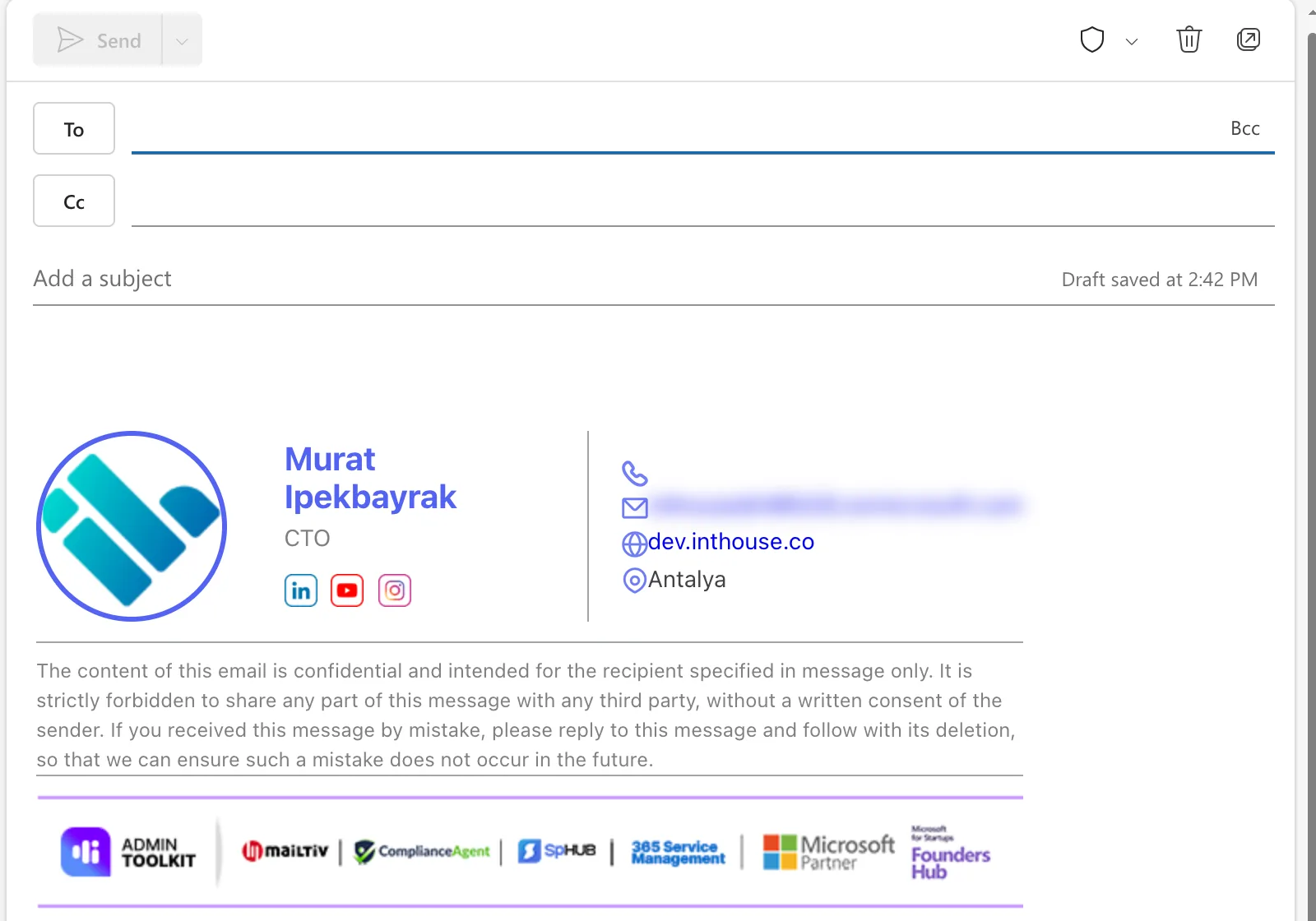
Your signature is added for you
When you start a new email, reply, forward or create a meeting invite, Mailtiv adds your company signature on its own. You don't need to do anything.
Your name, job title, phone numbers, photo and other details come from your Microsoft 365 profile. If something is wrong, for example an old job title, ask your IT team to update your profile in Microsoft 365. Mailtiv picks up the change after that.
Open the Mailtiv pane
To see your signature or choose another one, open the Mailtiv pane:
- Start a new email (or open a reply).
- On the Message tab (the Home tab in classic Outlook), select Open taskpane in the Mailtiv group. If you don't see it, look under Apps or the … menu.
The pane has three tabs:
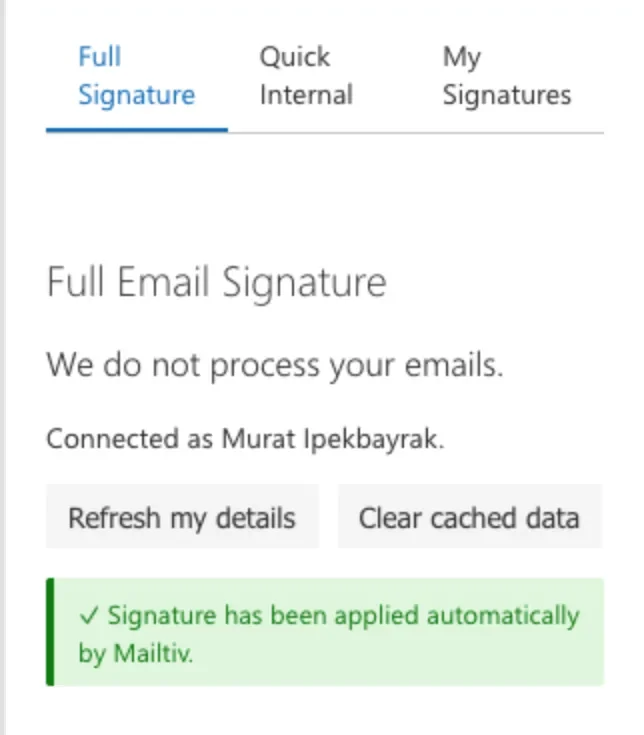
Full Signature
- Connect to Microsoft 365. Shown only if Mailtiv needs you to sign in once. After that, the pane shows "Connected as your name".
- Apply Signature puts your signature into the email if it isn't there already. Usually you'll see "Signature has been applied automatically by Mailtiv" instead.
- Refresh my details reloads your profile from Microsoft 365. Use it right after IT updates your title or phone number.
- Clear cached data makes Mailtiv forget what it has saved on this device and load everything again. Use it if your signature looks out of date.
Quick Internal
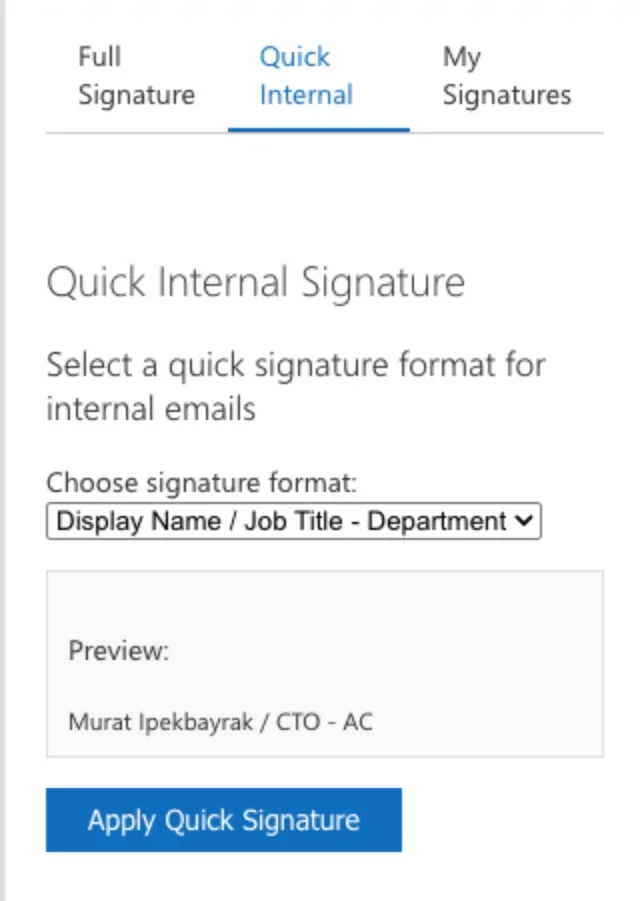
A short plain-text signature for emails to colleagues. Choose a format, check the preview, and select Apply Quick Signature. The formats are:
- Display Name / Job Title - Department
- Display Name - Department
- Display Name / Job Title
- Display Name Only
- Initials - Department
Mailtiv remembers the format you picked last.
My Signatures
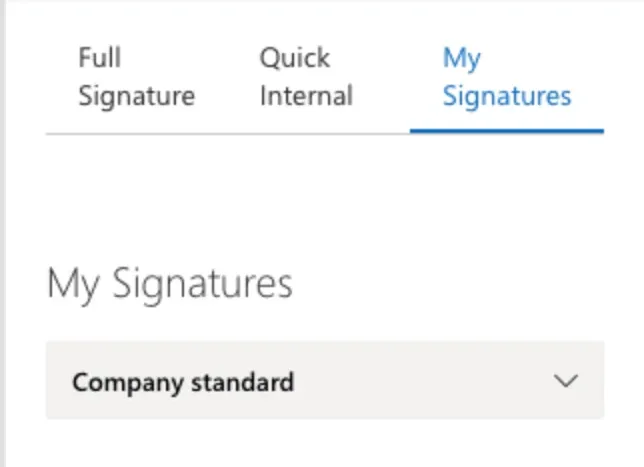
If your company gave you extra signatures (for example one for a project team), they're listed here. Expand one to see a preview, then select Apply This Signature. If you see "No group signatures are assigned to your account", you have only the standard company signature.
Messages you may see
- "Connect to Microsoft 365 using the task pane to load your signature." Mailtiv needs you to sign in once. Select Connect on the message, or open the Mailtiv pane and select Connect to Microsoft 365. You only have to do this once per device.
- "Mailtiv: … exceeds the Outlook size limit": Outlook limits how big a signature can be. Mailtiv makes the signature smaller so your email still gets one. Your photo, QR code or images may be left out. Tell your IT team so they can make the signature lighter.
On your phone and on different devices
- Outlook for Windows (new and classic), Mac and the web: everything in this guide works.
- Outlook for iPhone and Android: your signature is added to new emails, replies and forwards. Meeting invites and the Mailtiv pane are not available on phones.
- Meeting invites in Outlook on the web: the signature is placed at the top of the invite text. This is how Outlook on the web handles it.
Quick answers
- No signature? Open the Mailtiv pane and select Apply Signature. If that doesn't help, see Troubleshooting.
- Old details? Select Refresh my details. Changes in your Microsoft 365 profile can take a few hours to reach Mailtiv otherwise.
- Two signatures? You probably still have your own Outlook signature. Remove it in Outlook (Settings → Mail → Compose and reply → Email signature, or File → Options → Mail → Signatures in classic Outlook) and set the defaults to "(no signature)".
Questions?
Book a meeting with our team or sign in to the portal.